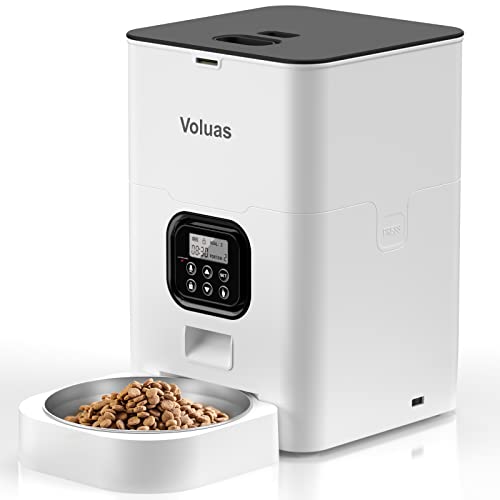
 By Ethan Brooks
Updated November 2026
Wopet automatic pet feeder troubleshooting usually comes down to a handful of recurring problems: food not dispensing, meals released at the wrong time, portions that look off, power or display faults, and app connection failures. This guide walks you through checking each of these in a logical order, so you can identify the cause and fix it without replacing the unit. Most issues take under fifteen minutes to resolve once you know where to look.
Before You Start: Gather What You Need
Having a few basic items on hand will make the process faster and safer. Work on the feeder with the power disconnected whenever you reach into the food chamber or the dispensing mechanism.
Shopping for one? See our guide: Wopet Automatic Pet Feeder Setup: 7 Best Picks Compared (2026).
- A soft brush or dry cloth for clearing kibble dust
- A kitchen scale or measuring cup to check portion output
- A fresh set of AA batteries if your model uses them, or the included USB power cable
- Your Wopet user manual or the model number printed on the base
- Your phone, if you use the companion app
Step 1: Check Power and Basic Operation
A surprising number of “broken” feeders are simply not receiving enough power. Start here before you touch any settings.
- Confirm the power adapter is firmly seated in both the feeder and the wall outlet. Try a different outlet if the first one is controlled by a switch.
- If the unit runs on batteries, replace all of them at once with fresh ones. Mixing old and new cells can cause intermittent power loss.
- Look at the indicator light or display. A dim or blinking light often signals low battery or a power supply that cannot deliver enough current.
- Press the manual feed button once. If the motor runs, the power path is working and the problem is likely in the food path or the schedule.
If the display stays blank with a known-good power source, the adapter may have failed. Contact Wopet support for a replacement rather than substituting a generic adapter with a different voltage rating.
Step 2: Diagnose Food That Is Not Dispensing
When the motor runs but little or no food comes out, the cause is almost always physical. Work through these checks in order.
Look for Bridging in the Hopper
Kibble can wedge across the top of the food chamber, forming a bridge that leaves an empty space underneath. Shake the feeder gently or tap the sides. If food falls, the bridge was the problem. Avoid poking deep into the hopper with fingers or utensils while it is powered.
Clear the Dispensing Channel
Remove the food container and inspect the outlet chute. Crumbs, moist food residue and oversized pieces can block the path. Use a dry brush to clear the channel. Never use water inside the mechanism unless the manual explicitly allows it, and always dry every part fully before reassembly.
Check for Food That Is Too Large or Too Damp
Wet food, treats, or kibble larger than the specified size often jams the rotating dispenser. Switch to dry kibble within the size range listed in the manual. Moisture also causes clumping, so keep the feeder in a dry area and clean it regularly.
Verify the Lid and Seals
Make sure the lid is fully closed and locked. Many feeders will not dispense if a sensor detects the lid is open or the container is not seated.
Step 3: Fix Portion Size Problems
If the feeder dispenses, but each meal is noticeably too large or too small, the issue is usually calibration or the portion setting rather than a fault.
| Symptom | Likely cause | What to do |
|---|---|---|
| Meals consistently too small | Portion setting too low, or kibble bridging | Raise the portion setting one step, then weigh one dispense |
| Meals inconsistent from day to day | Humidity affecting kibble flow | Store food sealed and dry; clean the chute |
| Meals too large | Portion setting too high, or wrong food density | Lower the setting; recheck with a scale |
| Only the first meal is correct | Schedule overlaps or manual feed triggered | Review the schedule and remove duplicate entries |
To test accurately, dispense one portion into a bowl placed on a kitchen scale, note the weight, and compare it with the target. Run two or three test dispenses and average the results. For guidance on matching settings to your pet’s needs, see Wopet Automatic Pet Feeder Meal Size: How to Set the Right Portions.
Step 4: Solve Scheduling and Timing Errors
Meals that arrive late, early or not at all usually trace back to the clock or schedule entries rather than the hardware.
- Confirm the feeder’s internal clock shows the correct date, time and time zone. A reset after a battery change can scramble this.
- Check whether the feeder is set to 12-hour or 24-hour format. An entry for 7:00 PM entered as 7:00 AM will look like a timing fault.
- Delete any duplicate or overlapping meal entries.
- Save changes and wait for the confirmation tone or screen message before leaving the menu. Exiting early can discard edits.
If your model is paired with an app, the schedule may be controlled there instead of on the device. The steps for that are covered in Wopet Automatic Pet Feeder App: Setup, Scheduling and Troubleshooting Guide.
Step 5: Resolve App and Connectivity Failures
When the feeder will not connect to your phone, or commands take a long time to register, work through these checks:
- Confirm your Wi-Fi network is 2.4 GHz. Many compact feeders do not support 5 GHz networks.
- Keep the phone within a short distance of the router during setup.
- Remove the feeder from the app and re-add it, following the pairing prompts exactly.
- Restart both the feeder and the router if pairing keeps failing.
Step 6: Address Motor Noise, Jamming and Error Codes
A grinding or strained motor sound usually means something is caught in the dispensing wheel. Power the unit down, remove the container, and clear any obstruction. If the motor hums without turning, the gear may be stripped or the obstruction is inside the housing. In that case, stop using the feeder and contact support. Do not force the mechanism by hand while it is powered.
If the display shows an error code, look it up in the manual first. Codes often point to a specific fault, such as a lid sensor, low battery or motor stall, which narrows the fix considerably.
Common Mistakes
- Overfilling the container. Food pressed against the lid can jam the wheel. Stay below the maximum fill line.
- Mixing battery types or ages. This causes erratic behavior that looks like a mechanical fault.
- Feeding wet food in a dry-food unit. Moisture sticks inside the chute and clogs it quickly.
- Assuming the schedule is correct after a power loss. Always verify the clock after any outage.
- Skipping regular cleaning. Dust and fat residue build up and slow the motor over time.
Tips for Preventing Problems
- Clean the food chamber and chute once a week with a dry brush, and wipe with a damp cloth monthly, drying fully afterward.
- Store kibble in a sealed container away from humidity and heat.
- Run a manual test dispense after each schedule change.
- Keep a note of your portion setting and the weight it produces, so you can spot drift early.
- Check batteries or power connections during routine cleaning.
Recommended gear
A few inexpensive supplies make maintenance and testing much easier. Look for items that suit a small, enclosed feeder rather than general-purpose tools.
- Small soft-bristle cleaning brush. Useful for clearing the dispensing chute without scratching internal parts. View on Amazon
- Digital kitchen scale. Lets you weigh each portion to confirm calibration instead of guessing. View on Amazon
- Airtight pet food storage container. Keeps kibble dry, which prevents clumping and dispensing errors. View on Amazon
- Replacement AA batteries with a long shelf life. A consistent power source reduces random shutdowns on battery-operated models. View on Amazon
FAQ
Why does my Wopet feeder run but no food comes out?
The most common cause is bridging, where kibble wedges across the hopper and leaves an empty space below. Tap the sides gently, then check the dispensing chute for blockages.
How do I know if my Wopet feeder is dispensing the correct amount?
Dispense one portion onto a kitchen scale, record the weight, and repeat two or three times. Compare the average with your target and adjust the portion setting if needed.
Why are my scheduled meals arriving at the wrong time?
Check that the internal clock is correct, that the time format (12-hour or 24-hour) matches your entries, and that duplicate schedule entries are removed.
Can I use wet food in an automatic pet feeder?
Most units are designed for dry kibble only. Wet food can clog the mechanism and spoil in the chamber. Use a feeder specifically rated for wet food if you need that option.
Why won’t my feeder connect to the app?
Confirm your Wi-Fi is 2.4 GHz, keep the phone near the router during setup, and re-add the device in the app. Restarting both the feeder and router often resolves pairing failures.
What should I do if the motor is grinding or humming?
Power off the unit, remove the container, and clear any obstruction. If the motor still hums without turning, stop using it and contact Wopet support, as the gear may be damaged.
How often should I clean my automatic pet feeder?
Brush out the chute and chamber weekly, and do a full cleaning with a damp cloth monthly, making sure every part is completely dry before reassembly.
When should I contact a professional or the manufacturer?
Contact Wopet support if the power adapter fails, error codes persist after troubleshooting, or the motor shows signs of damage. Avoid opening the housing yourself, since this can void the warranty and create electrical hazards.
Conclusion
Most Wopet feeder problems are solved by checking power, clearing the food path, verifying portion and schedule settings, and confirming the app connection, in that order. Work through the steps methodically and test with a scale rather than guessing. If a fault persists after these checks, or if you see signs of electrical or mechanical damage, stop using the unit and contact the manufacturer.
Related reading
- Wopet Automatic Pet Feeder Manual: Setup, Programming and Troubleshooting Guide
- Wopet Automatic Pet Feeder: 4 Best Picks Compared in 2026
Ready to choose one?
About Ethan Brooks
Ethan Brooks is part of our editorial team and reviews and edits our everyday pet gear guides, checking product details against manufacturer specifications and owner feedback.