 By Ethan Brooks
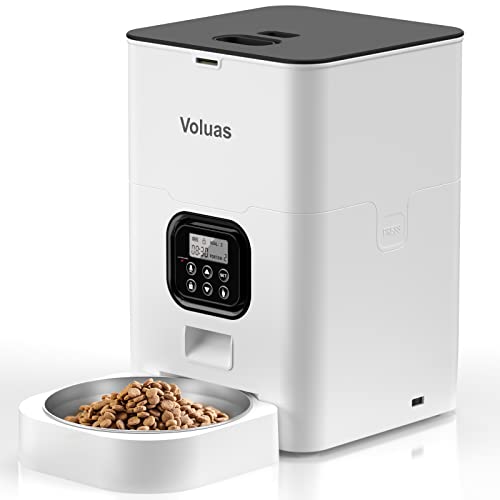
The wopet automatic pet feeder app lets you connect your feeder to your phone, schedule meals, adjust portions and check on feeding history from anywhere. This guide walks you through pairing the app, building a feeding schedule that fits a real weekday routine, and fixing the connection problems owners most often run into. Before you start, check the feeder’s manual for the exact firmware and app version it supports, since menu names can shift between updates.
What the App Does and What It Can’t Do
Most app-connected feeders in this category handle the same core jobs: scheduling meals, setting portion sizes, sending alerts when food is low or a meal has been dispensed, and showing a log of past feedings. Some models also pair with a built-in camera or microphone, which lets you check on your pet remotely. Wopet offers several feeder models, so confirm which functions your specific unit supports before you rely on any one of them.
Shopping for one? See our guide: 6 Best Automatic Pet Feeders with App Options for Busy Owners.
The app depends on your home Wi-Fi and your phone’s Bluetooth. It does not replace a sound feeding plan. A feeder can dispense food on time, but it cannot tell you whether your cat finished the meal, whether your dog is eating too fast, or whether your pet has a medical condition that calls for a different diet. For anything related to weight, appetite or health, check with your veterinarian.
Step 1: Gather What You Need Before Pairing
Pairing goes much more smoothly when you have everything ready. Owners who skip this step often end up restarting the setup two or three times.
- A 2.4 GHz Wi-Fi network. Many smart feeders cannot join a 5 GHz-only network, so check your router settings if the app fails to find the device.
- The Wopet account login you plan to use long-term. Create it before pairing so you don’t have to re-link the feeder later.
- Your phone’s Bluetooth turned on and location services enabled, since some phones require location permission to scan for nearby devices.
- The feeder placed within about 10 feet of your router during setup. You can move it afterward.
- Your Wi-Fi password written down, since you will type it in exactly as it’s written.
- The feeder’s power adapter plugged in, or fresh batteries if your model runs on them. Check the manual for the battery type and any backup battery recommendations.
Step 2: Install the App and Create Your Account
- Search for the Wopet app in the Apple App Store or Google Play and install the current version.
- Open the app and create an account with an email address you check regularly. Alerts about low food and device disconnections go to this address.
- Accept the permission prompts for Bluetooth and location. Denying them is the most common reason the app cannot find the feeder.
- Select the option to add a new device and choose the correct feeder model from the list.
Step 3: Pair the Feeder to Your Wi-Fi Network
Pairing steps differ slightly by model, but the general sequence is the same. The feeder enters a setup mode, the app detects it over Bluetooth, and then you send your Wi-Fi credentials to the device. Follow the on-screen prompts and watch for the status light on the feeder. Manufacturers typically describe a blinking light as “setup mode” and a steady light as “connected,” but the exact colors vary by model, so confirm against your manual.
If pairing stalls
- Restart the feeder and your phone, then try again within a few minutes of the feeder entering setup mode.
- Move your phone closer to the feeder during the Bluetooth scan.
- Confirm you typed the Wi-Fi password correctly. Passwords are case-sensitive.
- Temporarily switch your router to a 2.4 GHz band or create a separate guest network for the feeder.
Step 4: Build a Feeding Schedule That Fits Your Routine
Once the feeder is online, the schedule is where the app earns its keep. A good schedule matches the way your household actually runs, not an idealized version of it.
Choose meal times and portions
Start with your pet’s daily food allowance, printed on the food bag or set by your veterinarian. Divide that total across the number of meals you want. Most adult dogs and cats do well on two meals a day, while some owners of cats with a history of hunger or overeating use three or more smaller meals. Enter each portion in grams or the unit the app uses, and double-check that the total matches your target.
| Pet type | Typical meal count | Scheduling note |
|---|---|---|
| Adult dog, active | 2 meals | Schedule meals 8 to 12 hours apart and avoid feeding right before intense exercise. |
| Adult cat, indoor | 2 to 4 small meals | Smaller, spaced portions reduce begging and gulping. |
| Senior pet | 2 to 3 meals | Ask your vet whether a different portion size or timing suits your pet. |
| Multi-pet home | Separate schedules per pet, if supported | Confirm the feeder can dispense to individual pets or use separate bowls. |
Set the schedule step by step
- Open the schedule or meal plan screen in the app.
- Add a meal time. Leave at least 30 minutes between meals so the feeder doesn’t run back-to-back dispensing.
- Enter the portion size for that meal.
- Repeat for each meal, then save.
- Run a test by using the manual feed button in the app. Watch the dispensing and confirm the amount is right.
Step 5: Use Alerts, Logs and Remote Feeding
Turn on notifications for low food, jams and disconnections. A jam alert is especially useful if a kibble size is too large for the feeder’s auger or chute. The feeding log lets you confirm each scheduled meal actually dispensed. If you see a missed entry, check whether the feeder lost Wi-Fi at that time.
Remote feeding is handy for an unexpected late night or a sitter visit. Use it sparingly, though. If you add extra meals from your phone every day, the feeder schedule stops matching your pet’s real intake and makes it harder to spot changes in appetite.
Step 6: Troubleshoot Common Problems
- Feeder offline: Check that the router is working and that the feeder is still within range. Restarting the feeder usually restores the connection.
- Food not dispensing: Look for a jam, empty hopper or low battery. Clear any blockage with the tools the manual recommends.
- Schedule did not run: Confirm the feeder’s clock is correct and the time zone is set in the app. A feeder with the wrong time will dispense at the wrong hour.
- Wrong portion size: Recalibrate using a kitchen scale. Dispense a test amount, weigh it, and adjust the setting until the output matches your target.
Recommended gear
A few accessories make the app-based setup more reliable in everyday use.
- Wi-Fi extender: If the feeder sits in a far corner of the house, a mesh node or extender keeps the connection steady so schedules and alerts don’t drop. View on Amazon
- Kitchen scale: A digital scale that reads in grams lets you check each portion against your target, which matters more than any app setting. View on Amazon
- Backup battery pack: Some feeder owners keep a spare battery on hand so a power outage doesn’t interrupt a scheduled meal. Use only the battery type the manufacturer specifies. View on Amazon
Common mistakes
- Trusting the app schedule without ever checking the real portion size.
- Using a 5 GHz-only network and then wondering why pairing fails.
- Ignoring the low food alert until the hopper is empty at the next meal.
- Feeding the same large portion as a single meal to a cat who eats better on smaller, spaced portions.
- Forgetting to update the app and firmware, which can change menu options or fix connection bugs.
Tips for a reliable feeding routine
- Write down your pet’s daily food target and check it against the schedule every few weeks.
- Keep the feeder’s hopper clean and dry to prevent jams and mold.
- Label your primary and backup accounts so the feeder stays linked if one login changes.
- Watch your pet’s appetite. A sudden change in eating is worth a call to your veterinarian, whatever the app shows.
FAQ
Does the wopet automatic pet feeder app work without Wi-Fi?
Scheduled meals generally run from the feeder’s internal clock, so they can continue during a short Wi-Fi outage. Remote features, alerts and log updates need an internet connection to work.
Why won’t my phone find the feeder during setup?
The most common causes are Bluetooth turned off, location permission denied, or the feeder not in setup mode. Restart both devices and try again while the feeder is blinking in setup mode.
Can I use the app with more than one feeder?
Many owners add multiple devices to one account, but the number and setup process depend on the model. Check the app’s device list and your manual.
How do I know the portion size is accurate?
Dispense a test portion and weigh it on a kitchen scale. Adjust the setting until the weight matches your target, then recheck periodically since kibble size and density vary by brand.
What should I do if my pet stops eating from the feeder?
Check that the food is fresh and the feeder is working, then contact your veterinarian if the change lasts more than a day or two. A loss of appetite can signal a health problem.
Can I change the schedule while I’m away?
Yes, most feeders let you edit meal times and portions from the app at any time. Make changes in advance if a sitter needs to know the new routine.
Do I need to update the app?
Updates often fix connection issues and add features, so keep the app current. Check the manufacturer’s release notes if a feature disappears or changes after an update.
Conclusion
Once paired, the wopet automatic pet feeder app can handle most of your daily feeding schedule, alerts and history. Take the time to verify portion sizes with a scale and keep your Wi-Fi connection stable, and the feeder will do its job reliably. Keep your veterinarian involved in any decisions about your pet’s diet or appetite.
Related reading
- Wopet Automatic Pet Feeder with Camera: 5 Best Picks Compared (2026)
- Wopet Automatic Pet Feeder User Manual: Step-by-Step Setup Guide
- Wopet Automatic Pet Feeder Setup: 7 Best Picks Compared (2026)
- Wopet Automatic Pet Feeder Set Up: 5 Best Picks Compared (2026)
Ready to choose one?
About Ethan Brooks
Ethan Brooks is part of our editorial team and reviews and edits our everyday pet gear guides, checking product details against manufacturer specifications and owner feedback.